The Fastest Chrome Text Snippets & Free Text Expander.
Expand custom Chrome text snippets in 0ms anywhere on the web. Automate canned email responses, repetitive snippets, and live math calculations across Gmail, Slack, Notion, and Google Docs — with 100% local privacy in your browser sandbox.
Try It Right Now. Zero Installation.
Click any shortcut pill below or type directly into the simulated message composer to watch triggers expand in 0ms.
Built Different.
Not Just Another Text Expander.
Most snippet tools are slow electron wrappers, break inside modern web apps, or charge $144/year to harvest your keystrokes. Shortcut Helper is engineered from first principles: 0ms in-memory Chrome text snippets engine, native virtual DOM compatibility, and airtight local privacy.
Instant Keystroke Replacement (Zero Cursor Stutter)
Traditional cloud-based snippet apps make remote network calls that cause an annoying 180–350ms cursor lag. Shortcut Helper evaluates in-memory regular expressions inside your local browser memory (chrome.storage.local) for instant 0ms expansion before the next screen frame paints.
In-line Live Math Engine
Calculate expressions directly inside any email, chat message, or document without opening a calculator app or switching windows.
eval()
React & Vue State Synchronized
Ordinary snippet extensions break in React, Vue, or Angular because the Virtual DOM wipes out inserted text on the very next keystroke.
input.value directly → Virtual DOM resets & wipes text!
InputEvents!
Preserves Native Undo Stack
Never get trapped by an accidental expansion. Shortcut Helper preserves the browser's native mutation stack so pressing Undo cleanly restores your trigger.
Preserves exact cursor position & document history.
Complex Emojis & Unicode Safe
Naive snippet tools chop multi-codepoint flags and skin tones in half. Shortcut Helper uses standard grapheme boundary clustering.
Zero character corruption on multi-byte codepoints.
Works in Every Web App & Editor You Use
Engineered to operate seamlessly across standard HTML <input>, <textarea>, and complex contenteditable rich text editors without configuration.
100% Local Sandbox
Your private keystrokes and sensitive shortcuts never leave your computer. Zero background keyloggers, zero telemetry trackers, and zero analytics beacons.
How Much Time Are You Losing to Repetitive Typing?
Every repetitive email signature, greeting, support reply, and code template adds up. Calculate your personal monthly time and keystrokes reclaimed with Shortcut Helper.
Other Extensions Charge $40 to $144/Year.
Shortcut Helper is 100% Free & Open Source.
No pricing tiers, no credit card traps, and no “upgrade when you scale” trickery. We believe fast, private text expansion should be accessible to every student, developer, and professional for free.
Other Snippet Extensions
TextExpander, Magical, Text Blaze, Typinator, etc.
Shortcut Helper v1.0.0
100% Free Chrome Text Snippets • Open Source
chrome.storage.local. Zero keystrokes ever leave your computer.
/cal: directly inside any web app without switching windows.
Why We Made Shortcut Helper Completely Free
Three principles why you should never pay a subscription for text snippets again.
No Subscriptions, No Paywalls
TextExpander charges $40+/year and Magical charges up to $144/year just to expand text. Shortcut Helper gives you instant expansion, live math, and JSON backup without charging a single penny.
100% Open Source Transparency
Proprietary extensions can change pricing, insert ads, or collect telemetry anytime. Shortcut Helper is 100% open-source on GitHub — inspect every single line of code yourself.
Zero Keystroke Logging
Most cloud snippet apps send your keystrokes to their servers. Shortcut Helper runs completely offline in your local browser sandbox — zero keystrokes ever leave your computer.
chrome.storage.local)
Feature-by-Feature Competitor Matrix
See how Shortcut Helper gives you premium capabilities for $0 that others charge hundreds for.
| Capability | Shortcut Helper (v1.0.0) | TextExpander | Magical | Alfred (Mac) |
|---|---|---|---|---|
| Base Cost | $0 (100% Free Forever) | $40+ / year | $144+ / year | £34 (Mac Only) |
| Keystroke Privacy | 100% Local Sandbox | Cloud Keystroke Logging | Cloud Keystroke Logging | Local Only |
| Expansion Latency | 0 ms (Instant In-Memory) | 150 – 300 ms | 100 – 200 ms | < 10 ms |
| Open Source License | 100% MIT Open Source | Closed Source | Closed Source | Closed Source |
| No Credit Card Required | Yes (Zero Account Needed) | Trial to Paid Lockout | Trial to Paid Lockout | Paid License Key |
| In-line Math Calculator |
Built-in AST (/cal:)
|
Not Available | Not Available | Separate App Calculator |
| React & Vue Input Fix | Native Prototype Setters | Often Reverts | Sometimes Reverts | OS Keystroke Injection |
| Native Ctrl+Z Undo |
Preserved (execCommand)
|
Flaky / Replaces History | Flaky | Preserved |
| Offline Functionality | 100% Fully Functional | Limited | Degraded | 100% Offline |
Free Forever. No Bait-and-Switch.
Shortcut Helper was built with a simple conviction: everyday productivity tools should not demand a $144/year subscription tax. The entire code is licensed under MIT on GitHub — free to use, free to audit, and free to extend.
How to Install in 3 Simple Steps
Follow this detailed walkthrough to install the official production release (v1.0.0) on Chrome, Brave, Edge, Opera, or Arc. Zero store delays, zero credit cards, and zero permissions tracking.
Download & Extract the Release Archive
Download the official verified production build shortcut-helper-v1.0.0.zip (~64 KB) and unpack it to your local computer.
Right-click the .zip file → Click "Extract All..." → Click Extract.
Double-click .zip in Finder to automatically unpack it into a folder.
Right-click → Extract Here, or run unzip shortcut-helper-v1.0.0.zip.
.zip file into Chrome directly! You must extract it first so you have a regular uncompressed folder.
Open Extensions & Toggle Developer Mode
Open your browser's extensions dashboard and switch on Developer mode. This allows your browser to run unpacked open-source extensions locally.
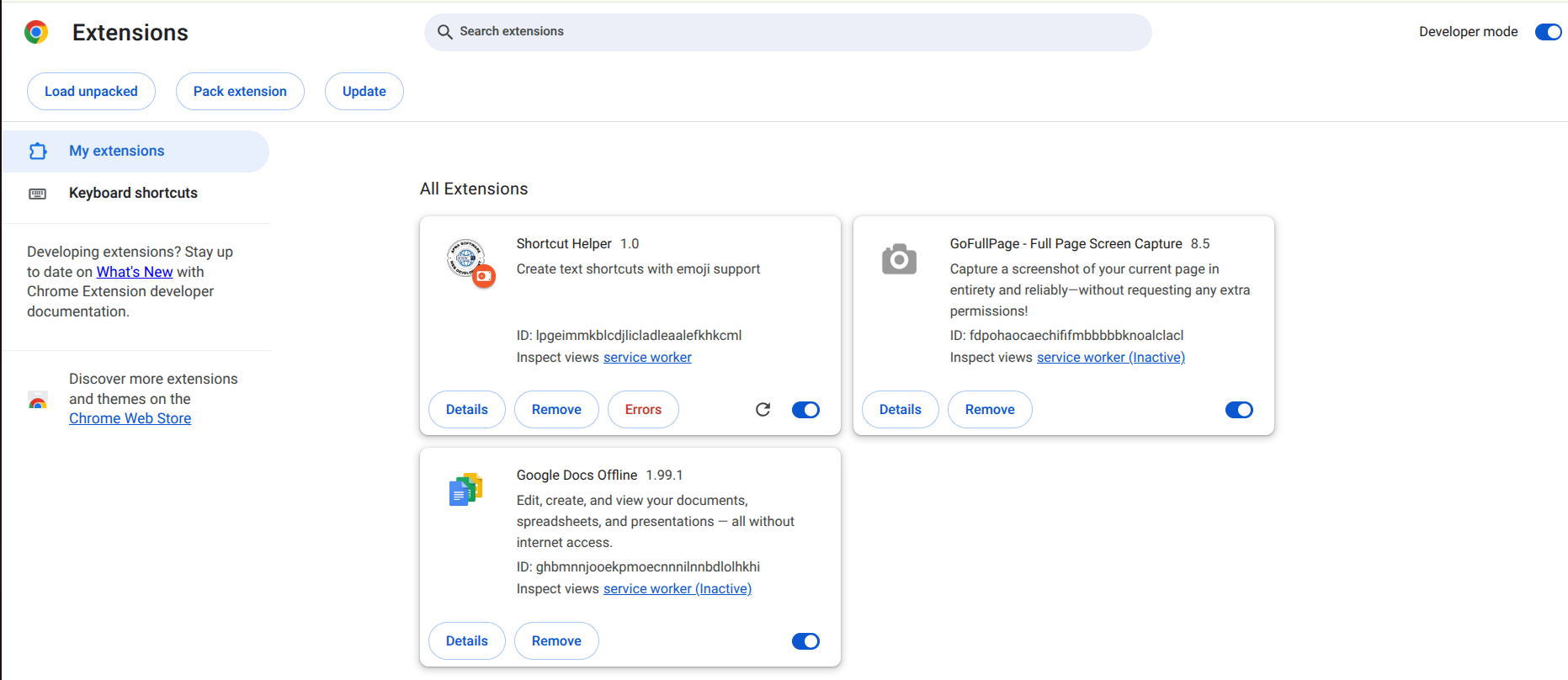
📸 Screenshot: Find the "Developer mode" toggle switch in the top-right corner of chrome://extensions
Or manually: Click Chrome menu (⋮ in top-right) → Extensions → Manage Extensions.
Look at the top-right corner of the extensions page (as shown in the screenshot above). Find the switch labeled "Developer mode" and turn it ON (Blue). This unlocks the "Load unpacked" button in the top-left toolbar.
Click "Load unpacked" & Select Folder
With Developer mode enabled, click "Load unpacked" in the top-left toolbar and select your extracted directory to finish installation.
Fast local-first keyboard expansion with in-line AST math and 0ms latency.
Click the button in Chrome's top-left corner as highlighted above.
Choose the unzipped folder containing manifest.json.
Click Select Folder (or Open). Shortcut Helper loads in 0 seconds!
Pin to Toolbar & Fire Your First Shortcut
Click Chrome’s puzzle icon (🧩) in the top-right toolbar and click the Pin (📌) icon next to Shortcut Helper. Now click the ⚡ icon anytime to add or edit shortcuts.
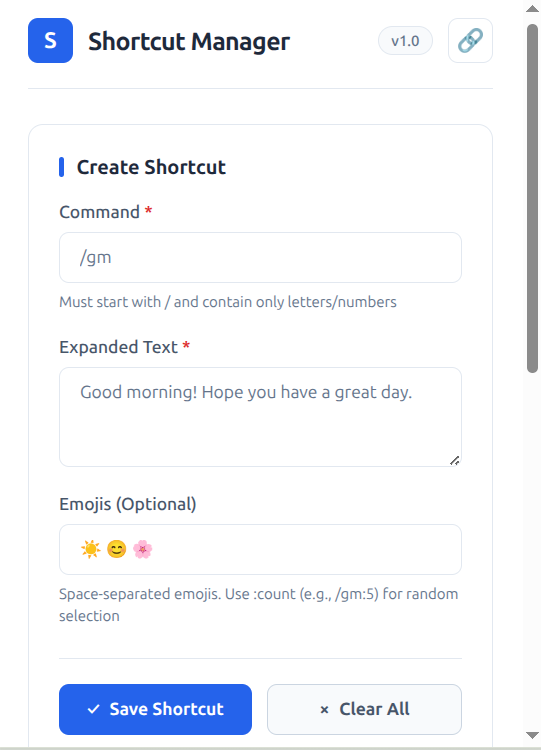
⚡ Shortcut Helper popup editor running directly in your Chrome toolbar
Quick Installation Troubleshooting
Common questions answered in 10 seconds.
This happens when you select the outer folder or the compressed .zip file. Open the folder and ensure manifest.json is located directly inside the folder you click.
Download the new release ZIP, replace the files in your folder, and click the circular Reload icon on the Shortcut Helper card in chrome://extensions.
Not by a millisecond. Shortcut Helper runs zero background analytics, zero telemetry listeners, and has 0ms latency. It consumes < 5MB memory.
Frequently Asked Questions
Everything you need to know about privacy, security, compatibility, and shortcut migration.